Table of Contents
TouchDesigner
Personal knowledge base for rapid re‑entry into TouchDesigner after long breaks.
Resources & Onboarding
TouchDesigner uses node‑based workflows where data flows through operators (OPs) that cook when needed.
- Beginner's course by Elekktronaut Resume @ episode 12/22
Interface Essentials
Global UI
O|Itoggle: Enables/disables cooking globally (useful for heavy networks).- Perform Mode: Toggle with
F1. Used to run the system fullscreen.ESCreturns to editing mode. - Palette: Contains ready‑made components; double‑click or zoom in to inspect internal networks.
- Operator Snippets: Help → Operator Snippets shows practical examples for most OPs.
■button : Open viewer (floating window) while keeping Network Editor open
Viewer Interaction
Buttons in the bottom right of OPs
♦: Toggle Active (Allows panning/zooming inside the viewer without affecting the OP’s output)●: Toggle Display in background
Panes & Layout
- Panes can be split using
ALT+[(vertical) orALT+](horizontal). - The
▼button on each pane opens more panes; the↓menu switches pane types (Network Editor, Geometry View, etc.). ALT+Z: Close pane under mouse.
Mouse Controls
Left Click+drag: Move operator or pan when clicking empty space.Right Click+drag: Selection box.Mouse Wheel: Zoom.
Keyboard Shortcuts
(Shortcuts only work with the cursor in the Network Editor, and are case sensitive - careful with CAPS LOCK).
TAB: Open Operator Create Menu (type in name to highlight)I: Dive inside a network. (also mouse wheel on it but clunky)U: Move up a level.H: Frame/home network.P: Toggle Parameters window.
Operators & Network Logic
Operator Families
- TOP: TEXTURE OPERATOR - Purple - 2D raster graphics
- CHOP: CHANNEL OPERATOR - Green - channels, numeric/time data, signal, communication,
- DAT: DATA OPERATOR - Pink - tables, strings, scripting
- SOP: SURFACE OPERATOR - Blue - Procedural 3D geometry
- COMP: COMPONENT OPERATOR - Grey - components, UI, 3D rendering
- MAT: MATERIAL OPERATOR - Yellow - materials, shaders
Dark-colored OPs are generators.
Cooking, Push/Pull Logic, Performance
- Data flows left → right.
- Cooking occurs when dependent OPs need updated data.
- Animated noodles = cooking
- Static noodles = cached.
- Heavy cooking sources:
- Full-res TOP chains
- CHOPs with large sample counts
- SOP deformers
Use nulls, selects, Resolution TOP, and Cache Select to avoid unnecessary cooking.
Network Hierarchy & Navigation
- Networks behave like Unix-style folders.
- Path bar shows current location.
- Double-click a COMP to see its internal network.
Flags, Viewers & Info
- Display flag = viewer preview.
- Render flag = included in rendering.
Middle-click→ info popup.- “?” in parameter window → operator wiki page.
Parameters & Editing Tricks
- Middle-click/hold a parameter to adjust increments. Slide Left / Right to increase/decrease
- Use on name of parameter to affect all values simultaneously.
- Drag CHOP channels into parameters:
- CHOP references
- Export bindings
- Drag CHOPs onto TOPs to convert.
Signal Flow & Data Types
TouchDesigner mixes several structures:
- TOPs → images (resolution-dependent)
- CHOPs → channels (sample rate–based)
- SOPs → points/geometry
- DATs → strings/tables
Important relationships:
- Instancing: SOP point count = CHOP sample count.
- CHOPs depend on FPS; TOPs depend on resolution.
CHOP Basics
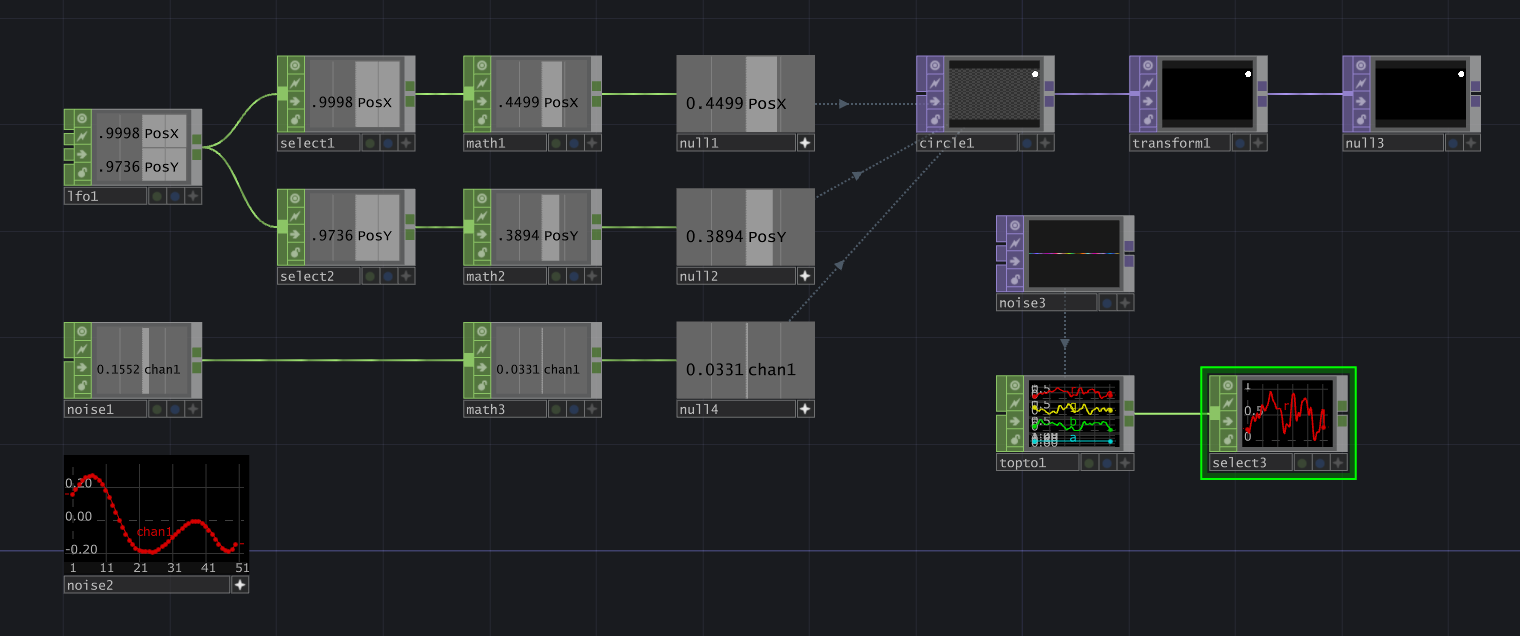
- Use select to extract specific channels
- Use math to change range
- Chops can be Time Slice (1 value / frame) or Range Sets (multiple values / frame → Graph view)
Rendering Workflow
SOP → COMP → TOP Pipeline
- SOPs exist on CPU → piped into Geometry COMP.
- Camera and Light COMPs define render scene.
- Render TOP outputs a 2D texture.
Add In SOPS in the Geometry op to send a chain of SOPS into it.
Render TOP Fundamentals
- Inputs:
- Camera
- Geometry COMPs
- Lights
- End with a null TOP for stability.
Cameras, Lights, Environment
- Keep one object per Geometry COMP when possible.
- Cameras operate like standard 3D transforms.
- Light types: Point, Spot, Directional.
Common Rendering Patterns
- SOP chain → Null SOP → Geometry COMP
- Geometry → Render TOP → Composite/FX
- Use Select TOPs to inspect interim results.
The display and render flags tell the rest of the network whether the node should be used in the rendering process and displayed in the viewer.
You can also take the output of your last (preferably null) operator in the SOP chain and right click > COMP > Geometry to automate a lot of the process.
You can put multiple things in a geometry comp with the display flag ON but it's best practice to keep just one item per geometry to have a cleaner network.
Output Pipeline
Window COMP
- Main operator for projection/output.
- Settings:
- Monitor
- Opening Size
- Borders
Perform Mode
- Enter using
F1. - Layouts may scale differently; test UI carefully.
Tips, Tricks & Best Practices
Null Strategy
- Use nulls at key checkpoints.
- Reference nulls elsewhere to avoid breaking chains.
Select Strategy
- Extract channels with Select CHOPs.
- Organizes complex CHOP data streams.
Referencing a parameter - Dynamic links
- Select the CHOP and toggle the display with the + in the bottom right
- Select the TOP to link to parameter
- Drag & drop from the CHOP into the parameter
- Select Reference type (Most of the time it's CHOP Reference)
You can also drag an entire CHOP into a CHOP to TOP operator to reference it.
Alternatively, you can right click in the parameter window for the CHOP → Copy Parameter and then in the destination parameter right click → Paste Reference
Resolution TOP
- Drop resolution early to speed up heavy FX.
- Increase resolution at end of chain.
Useful Python Expressions
absTime.frame→ integer frame counter. Combine with math expression (e.g.* 0.5) to control speed.absTime.seconds→ time in seconds.me.digits→ returns numeric suffix of OP name. Combine with math expression (e.g.* -5) to increment or decrement a parameter as you copy/paste (useful for Cache Select building a trail effect for example).me.parent().widthor.height→ resolution width/height of the parent comp
Cache & Cache Select
- Cache TOP stores multiple frames (heavy on VRAM).
- Cache Select references those frames without extra memory.
- Pair Cache + Reorder TOP for temporal RGB shifting.
Instancing Workflow
- Match SOP points to CHOP samples.
- Enable instancing in Geometry COMP → Instance tab.
- Position, scale, rotation via CHOP channels.
Optical Flow
- Outputs motion vectors (R = X velocity, G = Y velocity).
- Useful for simulations, particles, reactive systems.
This converts video streams into usable data for interactivity.
Common Techniques
Animating Noise
- Create a Noise TOP
- Animate transform Z with absTime.seconds*[SPEED]
Feedback Loops
- Feedback TOP + Transform + Composite.
- Use Resolution TOP to prevent GPU overload.
Trails
- CHOP Trail for numeric history.
- TOP composite trails for visual streaks.
Multi-Layer Composite Setups
- Composite TOP blends layers using Over, Add, Screen, etc.
CHOP-Driven Animation
- LFO, Noise, Trigger CHOPs for dynamic control.
- Export or reference in parameters.
TOP FX Chains
- Common structure:
Source → Level → Blur → Edge → Composite → Null
- Keep heavy FX at low resolution.
Resize nodes
When the resolution of a node is changed, clicking the arrow to resize the node will resize it down to the new ratio.
Creative Notes
- Repetition of simple forms builds complex visuals.
- Overlapping translucent layers enrich motion and depth.
- Vary timing, resolution, and color to create dynamic energy.
OLD VERSION
This section contains redundant data. Will be cleaned soon.
Useful Tools
Output
Output is done by using the Window COMP.
You can open as a separate window or in perform mode.
Tweak the Monitor, Opening Size and Toggle the Borders parameters.
Textures
Texturing is done with MAT operators and by sending things into the Color map property.
Useful tips
COMP Buttons and sliders can be connected to Null operators to toggle them into run mode and handily display their output.
Using Resolution TOP
It's good practice to work in lower resolutions until you need to up the resolution with a Resolution TOP.
When using source loops into TOP Fx chains it's handy to pass them through a Resolution TOP and lower them down to half res to improve performance.
Using the Cache TOP
Be wary of the frame count when using the Cache TOP as it is essentially what uses the most GPU memory.
It's best to use a Cache Select TOP rather than using the Output Index of the Cache TOP. They will have very small cook times and be totally free in terms of GPU memory as they will reference the images that are already in memory through the Cache TOP.
Use the Reorder top in conjunction with Cache and Cache select to create some nice RGB trailing effects
Working with instancing
When working with instancing take care that the length match. For example if your SOP null has 40 points, then the CHOP you use on it should have 40 samples.
Instancing is done in the Geometry Comp under the tab of the same name. Reference another SOP in there and play around with the points.